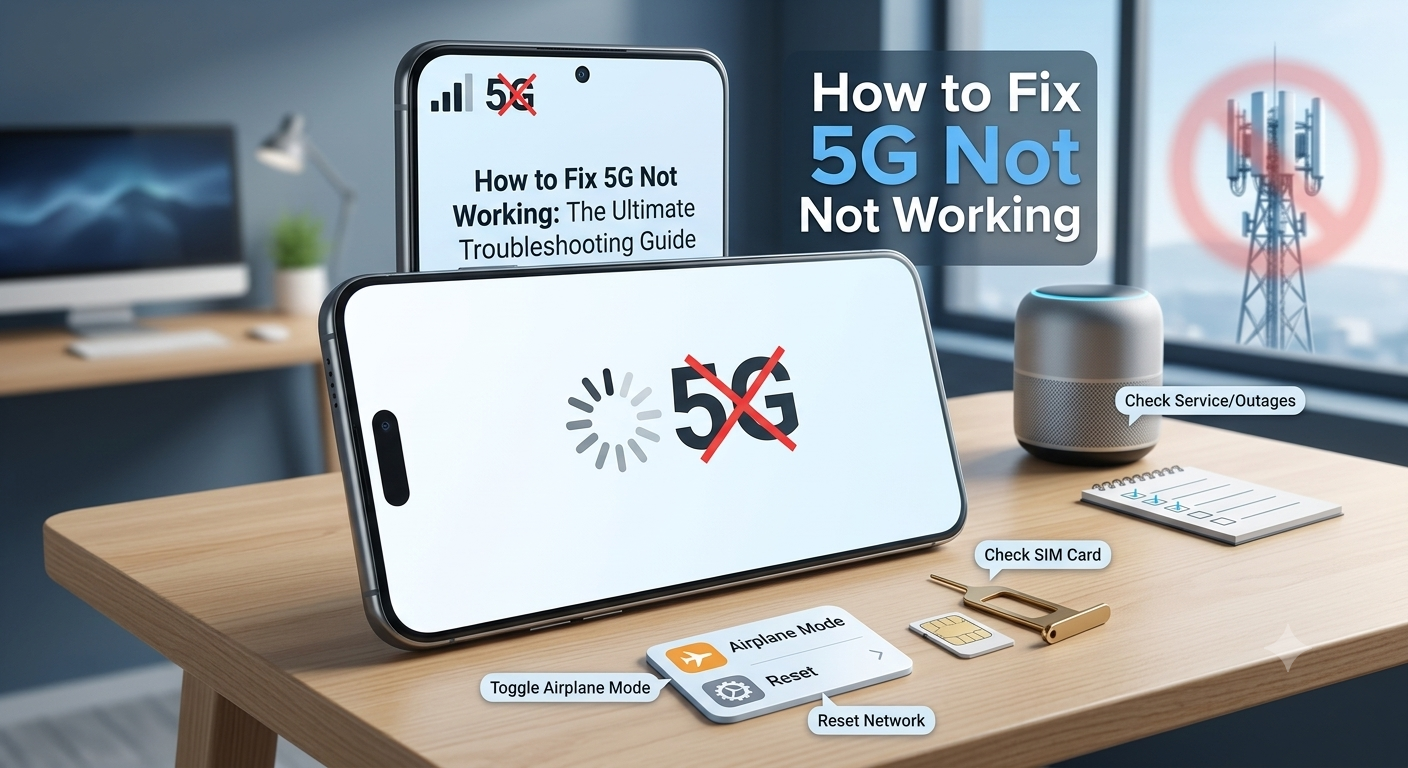


Switching to a 5G network promises lightning-fast download speeds, ultra-low latency, and seamless streaming. However, technology isn’t always perfect. It can be incredibly frustrating when you look at your smartphone and notice that your 5G is not working, showing slow speeds, or constantly dropping back to 4G LTE.
Whether you are using an iPhone or an Android device, network glitches can happen for various reasons—ranging from minor software bugs to carrier signal outages. In this ultimate troubleshooting guide, we will break down the exact, step-by-step methods to fix 5G network issues and get your high-speed internet back on track.
How to Fix 5G Not Working: Common Reasons
Before diving into the solutions, it helps to understand what causes 5G networks to fail. Here are the most common culprits:
- Lack of Coverage: You might be in a temporary “dead zone” where the 5G signal from your carrier cannot penetrate walls or structural obstacles.
- Software Glitches: Minor bugs in your phone’s operating system can disrupt network handshakes.
- Incorrect Network Settings: Your phone might be configured to prefer older 4G networks to save battery life.
- SIM Card Misalignment or Damage: A physically damaged or outdated SIM card can prevent proper authentication with 5G towers.
- Carrier Outages: Sometimes, the network provider (like T-Mobile, Verizon, or AT&T) faces localized technical maintenance or tower breakdowns.
Step-by-Step Methods to Fix 5G Not Working
Follow these practical, field-tested troubleshooting methods sequentially to restore your 5G connection.
Method 1: Toggle Airplane Mode (The Quick Fix)
The fastest way to resolve any sudden mobile data drop is to force your smartphone to reset its connection to the nearest cell tower.
- Swipe down or up to open your phone’s Control Center or Quick Settings.
- Tap the Airplane Mode icon to turn it on.
- Wait for about 15 to 30 seconds to let all wireless radios disconnect completely.
- Tap the icon again to turn Airplane Mode off.
- Wait a few moments to see if the 5G icon reappears at the top of your screen.
Method 2: Check Your Carrier’s 5G Coverage Map
5G technology uses high-frequency bands that have shorter ranges compared to 4G LTE. This means moving indoors, entering a basement, or driving behind large concrete buildings can instantly cut off your 5G access.
- Open a browser and check your service provider’s official website coverage map.
- Ensure that your specific zip code or current location fully supports active 5G signals. If you are outside a 5G zone, your phone will automatically default to 4G.
Method 3: Verify Your Mobile Data Settings
Sometimes, a system update or battery-saver utility can accidentally modify your cellular network preferences. You need to ensure 5G is manually enabled.
For iPhone Users:
- Open the Settings app.
- Tap on Cellular > Cellular Data Options.
- Select Voice & Data.
- Ensure it is set to 5G On (always uses 5G when available) or 5G Auto (uses 5G only when it won’t drastically drain the battery).
For Android Users:
- Open Settings and go to Network & Internet (or Connections).
- Tap on Mobile Network > Preferred Network Type.
- Look for the option that includes 5G/LTE/3G/2G (Auto Connect) and select it.
Method 4: Perform a Hard Restart
If a background software process or network daemon has crashed, a standard toggle won’t fix it. A complete system reboot forces the phone’s internal modem to clear its temporary cache and reload network parameters fresh.
- Hold down the power button and volume key, select Restart, and let the device boot back up normally.
Method 5: Turn Off Low Power Mode / Battery Saver
Smartphones are designed to preserve battery life aggressively when running low. Because 5G modems consume significantly more power than 4G modems, turning on power-saving features will often force the phone to disable 5G entirely.
- On iOS: Go to Settings > Battery and toggle off Low Power Mode.
- On Android: Go to Settings > Battery > Battery Saver and disable it.
Method 6: Eject and Re-insert Your SIM Card
If you use a physical SIM card, it can shift slightly inside its tray over time due to drops or vibrations, causing intermittent data loss.
- Power off your phone completely.
- Use a SIM ejector tool to carefully pop out the tray.
- Inspect the gold contact points on the SIM card for dirt or scratches. Clean it gently with a dry microfiber cloth if necessary.
- Place it back firmly, slide the tray in, turn on your phone, and check the network status.
Note: If you are using an older SIM card from a few years ago, it might not support standalone 5G. Contact your carrier to upgrade to a modern, 5G-ready SIM or switch to an eSIM.
Method 7: Reset Network Settings (The Ultimate Software Reset)
If none of the basic steps work, there could be a deep conflict in your phone’s configuration files. Resetting your network settings clears all saved cellular paths, APN protocols, Wi-Fi passwords, and paired Bluetooth profiles.
- On iPhone: Navigate to Settings > General > Transfer or Reset iPhone > Reset > Reset Network Settings.
- On Android: Go to Settings > System > Reset options > Reset Wi-Fi, mobile & Bluetooth (exact labels vary by brand).
- Warning: You will need to reconnect to your home Wi-Fi networks and enter their passwords again after doing this.
5G vs 5G E: Understanding the Difference
Many users get confused when they see a “5G E” icon on their screen and wonder why their speeds are incredibly slow.
| Icon Type | Real Network Status | Speed Profile |
| 5G / 5G+ / 5G UW | True Next-Gen Network | Ultra-fast speeds, ranging from 100 Mbps to over 1 Gbps depending on band availability. |
| 5G E (5G Evolution) | Upgraded 4G LTE Only | This is a marketing term used by some carriers. It is not real 5G. It is simply an optimized 4G network with speeds slightly faster than standard LTE, but far slower than true 5G. |
If your device displays 5G E, your phone is working exactly as intended, but you are not currently in a region that has true 5G hardware installed on the towers.
When to Contact Your Carrier or Repair Center
If you have tried resetting network profiles, verified you are standing inside an active coverage zone, changed your battery settings, and still cannot access high-speed data, the problem lies outside your control:
- Account Status: Log into your carrier app to ensure your data plan isn’t throttled or suspended. Some older unlimited plans require an explicit, free add-on toggle to unlock 5G network bands.
- Carrier Outages: Check platforms like Downdetector to see if your local carrier towers are suffering a temporary system blackout.
- Hardware Failure: If another 5G phone on the exact same carrier network works perfectly right next to yours, your device’s internal logic board or network antenna array might be physically damaged, requiring a visit to an authorized service center.
Conclusion
So, how do you fix 5G not working? In 90% of cases, toggling Airplane Mode, disabling aggressive battery-saving modes, or resetting your phone’s network configurations will instantly clear up the congestion and bring back your high-speed access. By walking through this comprehensive checklist, you can stop dealing with laggy connections and fully enjoy the speed your network provider promised.