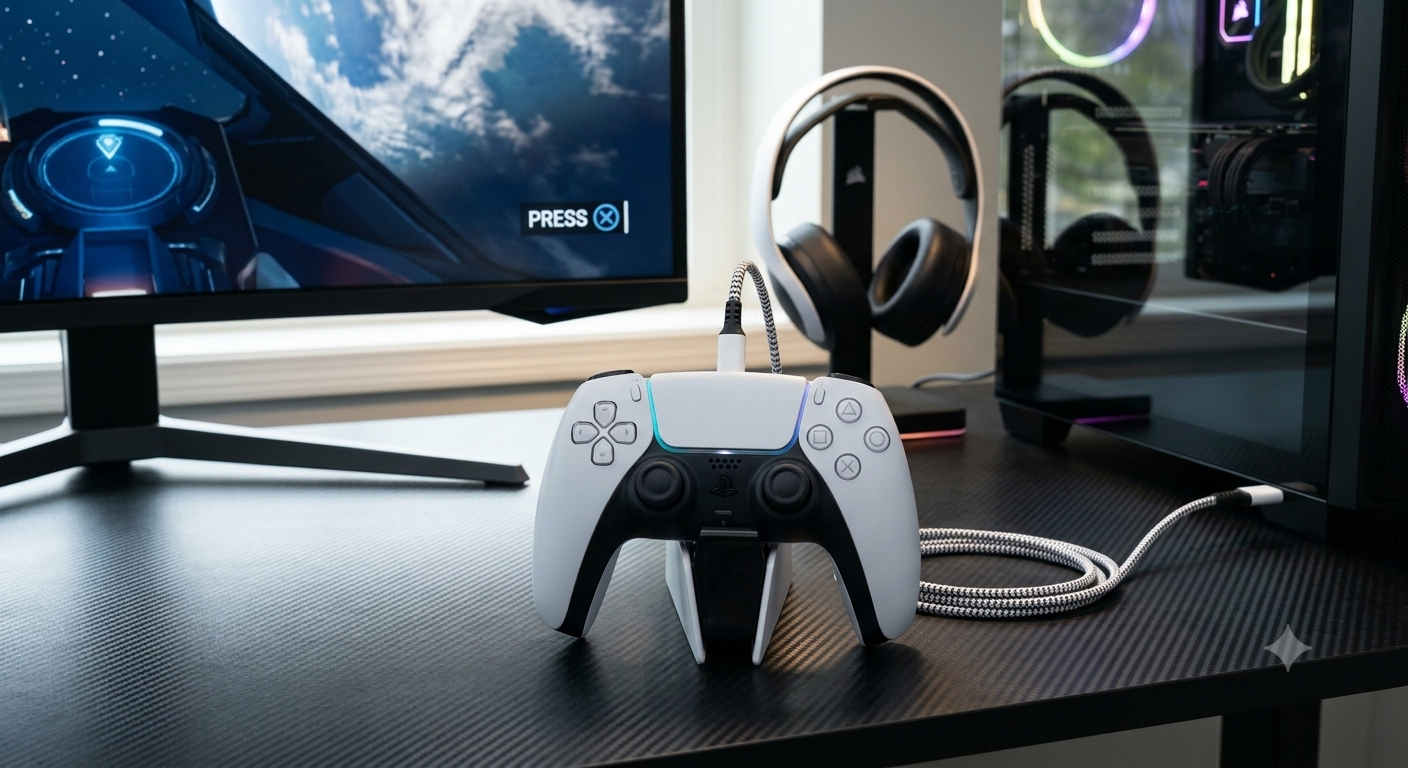


How to Connect PS5 Controller to PC: The Ultimate Step-by-Step Guide
If you want to know how to connect ps5 controller to pc, you have come to the right place because gaming on a computer with a DualSense pad is an amazing experience. Modern computer games support this advanced hardware perfectly. Many players prefer the feel of a console gamepad over a traditional keyboard and mouse setup. This comprehensive manual will explain every single method available to achieve a flawless connection. You will learn about wireless setups, wired cables, and specialized software configurations. By following these clear steps, you can start playing your favorite desktop titles within just a few minutes.
Why Learning How to Connect PS5 Controller to PC Changes Your Gaming Experience
When you understand how to connect ps5 controller to pc, you unlock incredible technical features on your desktop system. The Sony DualSense pad is famous for its advanced haptic feedback mechanisms and adaptive triggers. These features create realistic vibrations that match the action happening on your monitor screen. For example, you can feel the tension of a bowstring or the rough texture of a gravel road.
However, to get these premium features on a desktop, a proper configuration sequence is absolutely mandatory. Many modern titles available on digital storefronts support these features natively via a direct connection. If you configure the device incorrectly, it will function only as a standard gamepad without any special feedback. Therefore, mastering the process ensures you get full value from your expensive console hardware.
Another major benefit is the ergonomic comfort during long gaming sessions. The shape of this gamepad reduces wrist strain significantly compared to stretching across a mechanical keyboard. Whether you enjoy driving simulators, sports titles, or third-person action adventures, a gamepad provides smoother control. It allows you to sit back comfortably away from your desk setup and enjoy a relaxed posture.
How to Connect PS5 Controller to PC Using a High-Speed USB Cable
The easiest and most reliable method regarding how to connect ps5 controller to pc involves using a standard physical wire. For this approach, you require a proper USB-C to USB-A or a double-sided USB-C cable. Ensure that the wire you select possesses full data transfer capabilities, as simple charging cords will not establish a proper link with the operating system.
First, identify an open, functional USB slot directly on your computer motherboard or front panel chassis. Plug the larger end of the wire into your machine and attach the Type-C side into the top port of your gamepad. The lightbar surrounding the central touchpad will instantly illuminate, signaling that power is flowing into the internal battery.
Windows will immediately display a small notification indicating that a new audio and input device has been detected. The operating system handles the driver installation automatically in the background without requiring any manual downloads. This wired approach guarantees zero input latency, meaning your character reacts instantly when you press a button. Furthermore, a physical wire is the only way to experience native haptic feedback and adaptive triggers in supported desktop games.
How to Connect PS5 Controller to PC via Wireless Bluetooth Settings
If you want total physical freedom without messy wires, learning how to connect ps5 controller to pc via Bluetooth is the perfect option. To begin this wireless method, you must verify that your desktop has an internal Bluetooth chip or an external USB dongle attached.
Open the main Windows settings menu by pressing the shortcut keys or clicking the gear icon. Navigate directly to the section labeled “Devices” and ensure the wireless toggle switch is flipped to the active position. Next, click the prominent button at the top that reads “Add Bluetooth or other device” and select the primary option from the popup menu.
Now, take your gamepad and prepare it for pairing mode by holding down two specific buttons simultaneously. Press and hold the small Create button on the top-left side along with the central PlayStation logo button. Keep holding them firmly for approximately three to five seconds until the lightbar starts blinking rapidly in a distinct blue pattern. Your computer screen will quickly refresh and display a new device named “Wireless Controller” in the discovered list. Click on that name, and the pairing sequence will finalize instantly, changing the blinking light to a solid glowing color.
How to Connect PS5 Controller to PC and Optimize Steam Application Settings
Steam provides the absolute best platform integration when looking at how to connect ps5 controller to pc safely. Valve has added comprehensive native support for the DualSense pad directly into their digital client software layout.
Launch the desktop client and look at the top-right corner to activate the specialized “Big Picture Mode” interface. Once the interface loads, navigate into the main system controller settings panel. You will see a dedicated checklist containing various platform options, where you must check the box labeled “PlayStation Configuration Support.”
Once active, Steam allows you to completely remap every single button, analog stick sensitivity level, and touchpad boundary according to your personal gaming style. You can even customize the exact color of the LED lightbar or turn it off entirely to preserve battery lifespan. When you launch a game inside this ecosystem, the software automatically translates the inputs correctly, ensuring the correct button prompts appear on your monitor.
How to Connect PS5 Controller to PC for Non-Steam Games Using Third-Party Software
Sometimes you need to know how to connect ps5 controller to pc for games purchased on other platforms like Epic Games or EA Play. These storefronts do not always possess deep native driver protocols for console hardware.
To solve this compatibility issue, you can download a safe, free open-source utility called DualSenseX or DS4Windows. These programs trick the operating system into believing that an official Xbox gamepad is plugged into the system, which guarantees total compatibility across every single computer title.
Download the latest package from a verified repository, install the virtual driver packages requested during the initial setup, and launch the tool. Connect your hardware using either the wired or wireless methods explained earlier in this comprehensive manual. The utility will automatically detect the pad and allow you to simulate an Xbox layout, customize audio routing, and manually adjust trigger tension levels. Keep this helper application running silently in the background while you enjoy your gameplay.
Troubleshooting Tips for How to Connect PS5 Controller to PC Successfully
If you encounter unexpected difficulties while testing how to connect ps5 controller to pc, do not panic because most issues are simple to fix. The most frequent problem involves a weak wireless connection resulting in random input drops or character freezing.
To resolve wireless disconnects, ensure your external USB Bluetooth adapter is plugged into a USB 2.0 slot instead of a 3.0 port, as high-speed slots can cause frequency interference. Alternatively, minimize the physical distance between your seating position and the computer tower, removing any large metallic objects that block the direct line of sight.
If the gamepad refuses to power on or pair, locate the tiny reset pinhole situated on the reverse side near the official logo text. Insert a small paperclip into the hole, press down firmly for five seconds to clear the internal cache memory, and attempt the pairing sequence again. Finally, always make sure your main graphics drivers and Windows operating system patches are fully updated to prevent software conflicts.